The Recovery Email You No Longer Control
An old inbox or phone number can leave a reset route exposed. Check recovery details separately from everyday sign-in, then update them in a safe order.
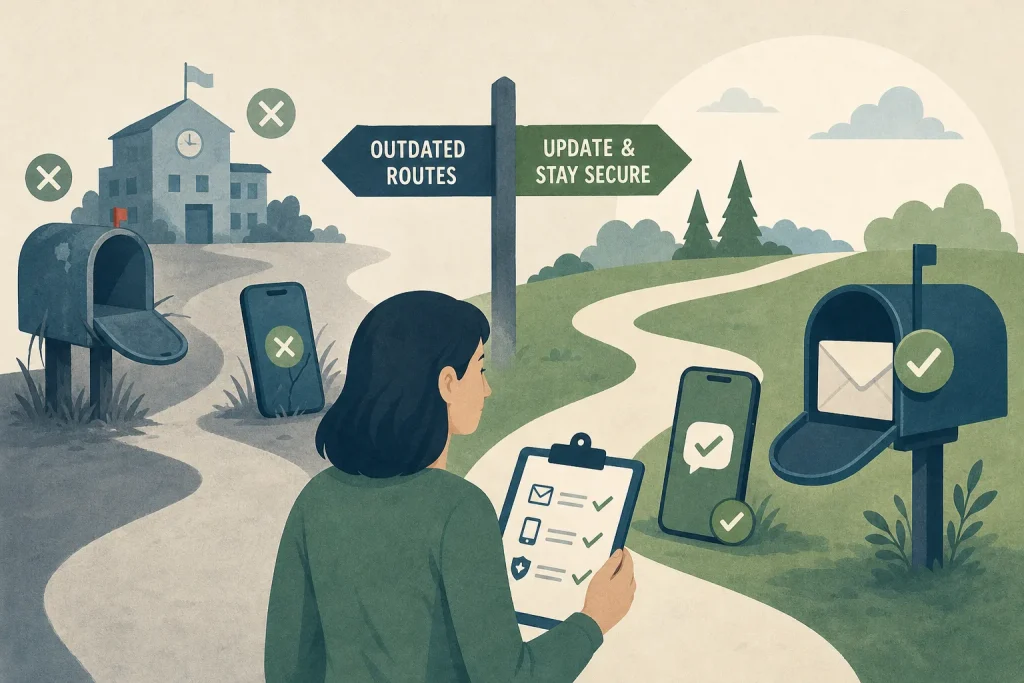
Can you still open the email address or phone number your account would use to help you get back in? Check before you need it. An abandoned inbox, a former work address or a number that now belongs to someone else can turn a routine password reset into a security problem.
Recovery details are not necessarily the same as sign-in details. You might use a password manager or passkey every day while an old email address remains on file as a backup route. Treat the two settings as separate: one gets you into an account during normal use; the other helps prove that the account is yours when normal access fails.
Look for recovery routes, not just sign-in methods
Open the account’s security or account-recovery settings while you are signed in. The exact labels vary, but look for entries such as “recovery email”, “backup email”, “recovery phone”, “trusted number” or “ways we can verify it’s you”. Do not assume that the address shown beside your username is the only one involved.
Review each listed route in turn. Can you sign in to that inbox now? Is the phone number still yours, with the SIM or eSIM under your control? Does the route belong to a current employer, school, former partner or family member? A detail can be accurate as a record and still be unsuitable for recovery.
Also check what the service uses for alerts and verification codes. Some accounts display contact details, two-factor authentication methods and recovery options in different places. Read the label beside each entry before changing it; removing a recovery address may not remove an old sign-in method, and changing the sign-in email may not update recovery details.
Mark routes you cannot control
Consider an address outdated if you cannot open it, no longer have permission to use it, or cannot reliably receive its messages. A phone number is outdated if it has been cancelled, transferred, or is attached to a device or plan you no longer manage. An address that forwards to your current inbox still depends on access to the original account, so check both ends.
Work and school addresses deserve particular care. The organisation may close an inbox when your role or enrolment ends, and its administrator may control access. Do not rely on it as the sole recovery route for a personal account. If a service lists a contact you do not recognise, pause before removing it: it might be a masked address or a method you set up under a different name. Use the service’s help pages or support channel to identify it safely.
Make a simple private note of the service, the outdated route and the replacement you intend to use. Keep it in a secure place such as a password manager’s notes field, rather than in an unprotected document. Do not record passwords, one-time codes or full recovery codes in an ordinary checklist.
Prepare the replacement before removing the old route
Choose an email inbox or number that you control and can keep accessible. For an email address, sign in to it directly first, check that you know its password and confirm that its own recovery method is current. For a phone number, make sure you can receive messages on the device you use. If you are moving away from a number, do not assume that an account’s saved contact will change along with your mobile plan.
Where the service allows it, add the replacement route before deleting the old one. Complete any confirmation prompt sent to the new inbox or device, then return to the account settings and check that the new entry appears as verified or active. Keep the account open in your current session while you make the change; avoid signing out until you know the update has taken effect.
Say you still use a personal account whose recovery email is an old university inbox, but you can still sign in normally. You first check that your current personal inbox is accessible and has its own recovery details, then add it to the account and confirm the service’s message. After checking that it is listed as active, you remove the university address. The observable result should be a current recovery route on the account, while your usual sign-in method remains unchanged.
Keep recovery separate from everyday sign-in
Replacing a recovery address does not automatically mean you should change your username or your usual sign-in email. If you want to change both, handle them as separate tasks and read each confirmation screen. A service may send a notice to the old address, ask you to confirm the new sign-in address, or temporarily retain both. Do not mistake a security notification for proof that every recovery setting has changed.
Likewise, changing a recovery phone does not necessarily replace a number used for text-message sign-in or two-factor authentication. Check those entries individually. If you use an authenticator app or a passkey, make sure you understand how it can be restored or used from another device before removing a method that still works.
For accounts that matter to your email, finances or identity, avoid making several access changes at once. Keep a trusted, signed-in device available, save any recovery codes in a secure place if the service provides them, and follow the account provider’s instructions. If you are unsure whether a route belongs to you or suspect someone else has access, use the provider’s official support channel rather than links in an unexpected message.
Verify the settings and keep the record current
After the change, revisit the security page and read the full list of recovery methods. Confirm that the replacement is active, remove routes you no longer control, and check for unfamiliar addresses or numbers. Look separately at recent security activity and signed-in devices if the service offers those pages; recovery maintenance is not a substitute for reviewing access to the account.
Update your private note so it records the date of the review and which recovery routes remain current. Recheck after changing your email provider, mobile number, job or school account, or after losing a device. The useful question is not simply “What address is listed?” but “Could I use this route myself, and would I notice if someone else tried?”
A recovery setting is easy to overlook because it may sit unused for years. Give it a brief check whenever you update your main account security, and make changes in an order that preserves access: confirm the replacement, verify it, then retire the route you no longer control.