A Permission Is Not a Permanent Yes
Check what an app can access, decide what it needs for the task in front of you, and revisit the choice when your habits or the app change.
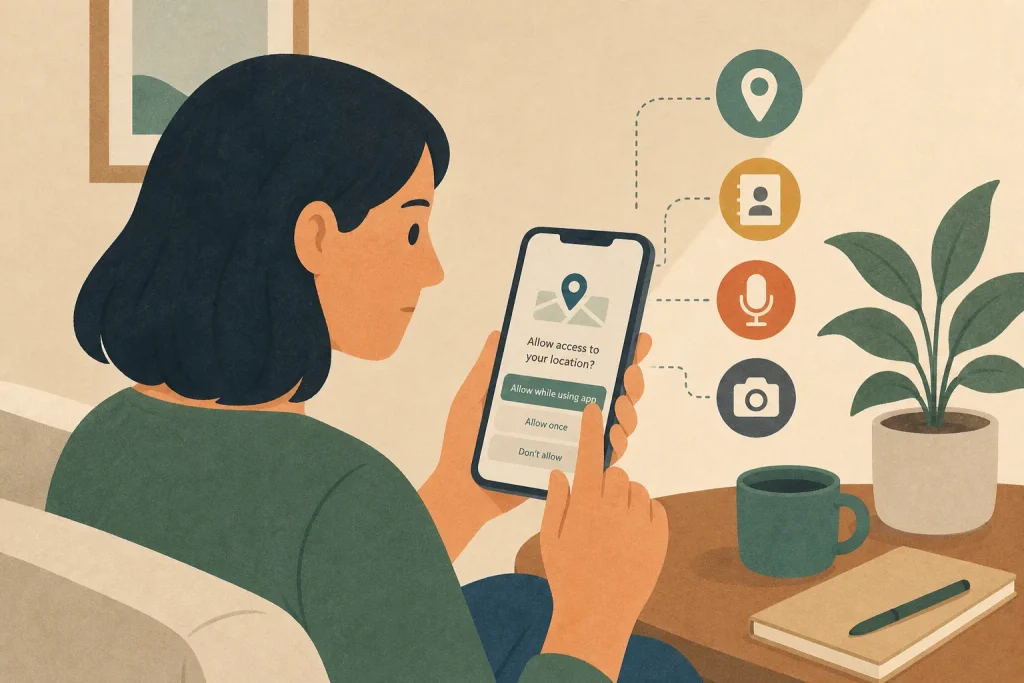
Does this app need access to your location, contacts or microphone for the task you want to do right now? Open your device’s settings and check before answering. A permission is a choice about access, not a promise to keep that access switched on indefinitely.
The right setting depends on the app and the feature. A mapping app may use location to centre the map or provide turn-by-turn directions, while another may let you enter a destination manually. Start with the task you want to complete, then allow only the access that supports it. If you are unsure, deny or limit the permission and see whether the feature still works.
Start with the task you want the app to perform
Think about the feature you are using, rather than the app’s broad description. “Social” or “productivity” does not explain why an app needs a specific permission. Ask what would happen if you turned that permission off: would the feature stop working, become less convenient or remain unaffected?
On an iPhone or iPad, open Settings and select the app, or go to Privacy & Security to review access by category. On Android, open Settings, then Apps, select the app and choose Permissions; menu names vary by device maker and software version. You can also review permissions by category in the relevant privacy or permission manager.
Check the permission name and the available choices carefully. Depending on the device and permission, you may be able to allow access only while using the app, allow selected photos, permit one-time access or deny access altogether. Choose the narrowest option that still lets you complete the task.
Allow access when the feature depends on it
Some permissions have an obvious connection to a feature. A mapping app may use location to show your position or guide you along a route, depending on the app and the feature; you may be able to enter a destination or inspect a map without sharing your device’s location. A voice recorder needs microphone access to capture sound. A document-scanning app may need camera access when you scan a page. If you are actively using a feature that depends on a permission, allowing the relevant access can make sense.
That does not mean every available access mode is necessary. If you use navigation only after opening the app, access while using the app may be enough. If a camera feature works with a photo you choose, the app may not need ongoing access to your whole photo library. Check whether your device offers a narrower option before granting broader access.
Say you install a recipe app because you want to photograph a handwritten recipe. You choose a picture from your library, but the app requests access to every photo. If your device offers selected-photo access, choose the recipe image instead. The expected result is that you can use that picture for the recipe without making your whole library available to the app.
Deny or limit access that does not fit the task
If a permission has no clear connection to what you are doing, leave it off for now. A calculator does not ordinarily need your microphone to perform calculations. A weather app might use location to show local conditions, but you may be able to enter a town manually instead. The app’s request is not, by itself, a reason to approve it.
Some access is useful but optional. Contacts can help you find people already using a messaging service, but you may prefer to enter a number yourself. Location can make local recommendations more relevant, but a saved postcode may be enough. Photos may be needed to attach an image, while broad library access may not be.
Try the feature with access denied. If it works, keep the restriction. If it does not, decide whether the feature is worth granting access for, and whether a limited option will do. You can also stop using the feature or choose another app if the requested access feels excessive for the task.
Match the setting to the situation
You use the feature only occasionally. Prefer one-time access or access only while using the app, if available. This fits a task such as scanning a receipt or recording a voice note, where the app does not need continuing access after you finish.
You need the feature to work in the background. Some functions, such as directions that continue while your screen is off, may require access beyond the moments when the app is visible. Check the app’s settings and the permission explanation. Allow broader access only if that background function is something you want; otherwise, use the feature while the app is open or turn it off.
You want to share one item, not a collection. Use a file picker or selected-photo option where your device provides one. This fits sending a particular image, choosing a document to upload or attaching a contact card. Select the specific item rather than granting library-wide access simply for convenience.
You cannot tell why the app wants access. Deny it while you check the app’s help pages, feature settings or the permission explanation shown by your device. If the feature still works, there is no need to change your decision. If it does not, weigh that feature against the access requested rather than accepting automatically.
Your use of the app has changed. Reopen the permission settings and adjust access. An app you once used for frequent route guidance may now be used only to look up an address. A photo app may no longer need access after you finish a project. Permissions should fit current use, not just the reason you first installed the app.
Pay attention when an app’s role changes
A permission that made sense for one task may not make sense for another. If an app adds a feature, changes how it works or starts asking for access you did not expect, pause and identify what the new request is meant to support. You do not have to approve it to keep using unrelated features.
Also revisit settings when you stop using a feature. If you no longer record audio in an app, remove its microphone access. If you no longer share location from a service, switch it off or limit it to use within the app. This is especially useful for apps you installed for a temporary need, such as scanning paperwork or sharing images for an event.
Some devices may automatically reset permissions for apps you have not used recently. Treat that as a prompt to review, not as a substitute for your own decision. If you open an app after a long gap, check the permissions it requests and consider whether the original purpose still applies.
Review permissions as you use your device
Pick a convenient moment, such as after installing an app or when a permission prompt appears. Review that app’s permissions while its purpose is fresh in your mind. You can also check by permission category to see which apps can access the camera, microphone, location, photos or contacts, then remove access that no longer fits.
Use the device’s built-in privacy indicators as a cue. If a camera or microphone indicator appears when you are not expecting one, close the app and inspect its access. Indicators help you notice activity, but the permission page is where you can change what an app is allowed to do.
Make the decision in plain terms: what task needs this access, when does it need it, and what is the narrowest setting that works? If you cannot answer the first question, deny access for now. If the app later needs the permission for a feature you choose to use, you can reconsider then.
Let the permission follow your choice
App permissions are easiest to manage when they follow a specific purpose. Allow access for a feature you intend to use, narrow it where your device offers a choice, and remove it when the purpose ends. If a request seems unrelated, keep the setting off until you understand the reason.
Next time an app asks for access, pause before responding. Name the task you are trying to complete, choose the least open setting that supports it, and return to the permission later if your use changes. If the feature works without that access, leaving it off is a straightforward way to share less.