Check a Screenshot Before You Share It
A simple review can catch names, notifications, account details and other personal information before a screenshot leaves your device.
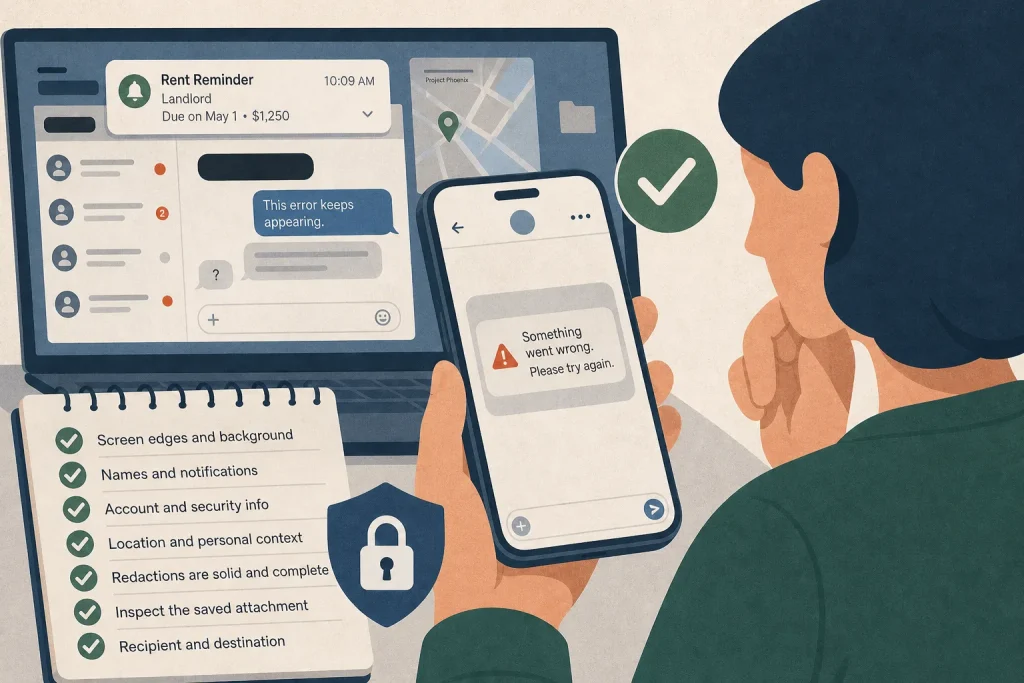
About to post an error message, a useful tip or a conversation? Check what else the screenshot reveals before you tap send. Names, notification previews, account details and other people’s information can sit just outside the part of the screen you meant to show.
Use this quick checklist each time. If something private appears, crop it out, cover it with a solid block or make a cleaner screenshot. Then open the edited file and inspect it before sharing.
Scan the edges and background
Check the status bar, browser tabs, side panels, chat list, taskbar, dock and anything behind a pop-up. On a phone, inspect the top and bottom edges; on a computer, check whether the capture includes another window or desktop icons.
If you see an unrelated name, workplace or open app, crop it away if the screenshot still makes sense. If cropping would remove useful context, make a fresh capture with only the relevant window visible.
Check names, messages and notifications
Look for names, profile pictures, usernames, email addresses and message previews. A notification may reveal private details even when the sender’s name seems harmless. Check for other people’s information too, and remove it unless sharing it is necessary and appropriate.
Say you want to show a friend an error in a messaging app. The hypothetical starting screen also shows a landlord’s notification and a list of recent contacts. You dismiss the notification, open the relevant conversation and capture only the error. The resulting image shows the problem without exposing unrelated names; if the error no longer has enough context, you add a brief explanation instead of restoring the private details.
Inspect account and security information
Check for account emails, phone numbers, recovery prompts, one-time codes, QR codes, invitation links and passwords. Do not share a screenshot containing a sign-in code, recovery code or reset link. Make a new capture after the sensitive information has disappeared from the screen.
If a credential has already been exposed, respond according to what it was and the provider’s guidance. For example, a password may need changing, while a session token, recovery code or active link may require a different action, such as revoking it or asking the provider to invalidate it. Use the service’s security settings or contact its support team if you are unsure; do not assume every exposed credential can be fixed in the same way.
For a settings tip, capture only the relevant control and remove identifiers that do not help explain it. If concealing a detail would obscure the control, use a recreated screen with sample information rather than sharing the original.
Look for location and personal context
Check for maps, travel plans, delivery addresses, calendar entries, school names and workplace badges. A document title or background window can also reveal a project or private matter. Consider what someone could infer by combining visible details, not just what each item says on its own.
If the location or context is not needed, crop it out or make a new capture. If the image still feels revealing, describe the issue in text instead.
Choose a reliable edit
Use your phone’s built-in Markup or Photos editor, Preview on a Mac, or Paint on Windows. Crop away irrelevant areas. For details that must stay in place, cover them with a solid, opaque shape; do not rely on a translucent highlighter, blur or loose scribble.
If you cannot tell whether a cover hides the information fully, crop it out or create a new screenshot after removing the detail from the screen. A clean capture is often easier than editing several private areas.
Open the edited file and inspect it
After saving, open the exact file you plan to send. Check that no sliver of a name or number remains, each cover is opaque, and the screenshot still makes sense. Confirm that you are attaching the edited image rather than the original file beside it.
If the image is unclear, add a short caption or take a cleaner capture. Do not reveal extra personal information just to make the screenshot easier to understand.
Check the audience and destination
Confirm the recipient and where the image will appear. A private message can be forwarded or saved, and a closed group may reach more people than you expect. Choose a smaller audience for personal information, and remove someone else’s name or message if sharing it is unnecessary or unexpected.
Before sending, use this checklist:
- Check the screen edges and background; if unrelated apps or details appear, crop them out or make a fresh capture.
- Check names and notification previews; if they identify people or reveal private messages, dismiss or remove them, or explain the issue in text.
- Check for codes, passwords, links or account details; if any appear, do not share the image and make a clean capture.
- Check maps, addresses and calendar details; if they reveal an unnecessary location or plan, crop them away or use text instead.
- Check every redaction; if text remains visible or the cover is not clearly opaque, replace the edit with a solid cover or make a new screenshot.
- Check the saved attachment; if it is the original or the edit is unclear, select the corrected file or create another capture.
- Check the recipient and destination; if the audience is broader than needed, choose a more private channel or leave out the screenshot.
One final habit helps: pause with the attachment open, not just the editing screen. The file in the message composer is the one that matters, so inspect it there before sending.